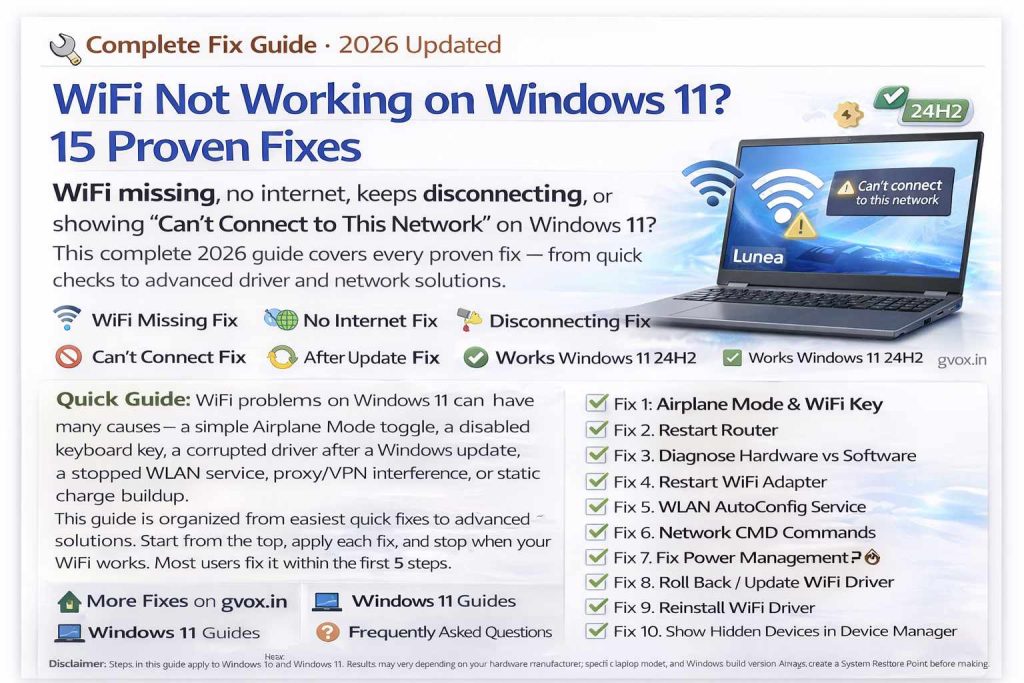
Quick Guide: WiFi problems on Windows 11 can have many causes — a simple Airplane Mode toggle, a disabled keyboard key, a corrupted driver after a Windows update, a stopped WLAN service, proxy/VPN interference, or static charge buildup. This guide is organized from easiest quick fixes to advanced solutions. Start from the top, apply each fix, and stop when your WiFi works. Most users fix it within the first 5 steps.
1
Check Airplane Mode & Physical WiFi Key
Easy
The most overlooked cause of WiFi not working — and the easiest to fix. Many users spend hours troubleshooting before realizing Airplane Mode was accidentally enabled, or a physical key on their laptop had disabled WiFi.
Check Airplane Mode:
1
Quick Settings MethodClick the network/sound icon in the bottom-right taskbar → Look for Airplane Mode tile → Make sure it is OFF (grey, not blue).
2
Settings MethodSettings → Network & Internet → Airplane Mode → Make sure it is toggled OFF.
3
Toggle TestEven if already off, try enabling Airplane Mode for 10 seconds, then disabling it. This sometimes resets the WiFi radio and brings the option back.
Check Physical WiFi Key on Laptop:
Many laptops have a dedicated WiFi key on the keyboard (often F2, F3, F12, or a key with a WiFi antenna icon). Some also have a physical slide switch on the side. Check your keyboard — if you see a WiFi-looking icon on any Fn key, press Fn + that key to toggle WiFi on.
✅ Quick Win: This fixes WiFi for a surprising number of users who accidentally pressed a keyboard shortcut. Always check this first before any other troubleshooting.
4
Restart (Disable & Enable) WiFi Adapter
Easy
A quick adapter restart clears any temporary glitch in the WiFi driver or connection state — often faster than a full system restart.
Method 1 — Settings:
Settings → Network & Internet → Advanced Network Settings → WiFi → Disable → Wait 15 sec → Enable
Method 2 — Control Panel:
Control Panel → Network & Sharing Center → Change Adapter Settings → Right-click WiFi → Disable → Right-click → Enable
Method 3 — CMD Command:
CMD as Admin → ncpa.cpl → Right-click WiFi adapter → Disable → Enable
💡 Tip: After re-enabling, wait 15–30 seconds for the adapter to fully initialize and scan for networks before checking if WiFi appears.
5
Enable WLAN AutoConfig Service
Easy
WLAN AutoConfig is the Windows service responsible for managing wireless connections. If it’s stopped or set to Manual, your WiFi icon will disappear and you won’t be able to connect to any wireless network.
Windows Search → “Services” → Enter
1
Open Services appSearch “Services” in Windows search bar and press Enter.
2
Find WLAN AutoConfigPress the W key to jump to the W section. Scroll down to find “WLAN AutoConfig”.
3
Open PropertiesDouble-click on WLAN AutoConfig.
4
Set Startup Type to AutomaticIn the dropdown, select “Automatic”.
5
Start the serviceIf Status shows “Stopped”, click the Start button. If already running, click Stop → then Start (to restart it).
6
Apply & OKClick Apply → OK → close Services. Check if WiFi icon returns.
✅ Also check these services while in the Services app: DHCP Client (must be Running — handles IP assignment), WWAN AutoConfig (for mobile broadband), and Network Connection service. Ensure all are set to Automatic and Running.
6
Run Network Reset Commands in CMD
Medium
These commands reset the Windows networking stack (Winsock catalog), TCP/IP settings, and DNS cache. This is one of the most effective fixes for WiFi connected but no internet, and for general connectivity failures.
Windows Search → CMD → Right-click → Run as Administrator → Yes
Type these commands one by one, pressing Enter after each:
netsh winsock reset
netsh int ip reset
netsh int ipv4 reset
ipconfig /flushdns
ipconfig /release
ipconfig /renew
After running all commands, close CMD and restart your PC. Do not skip the restart — these changes take effect after reboot.
💡 What each command does:
• netsh winsock reset — Resets Winsock catalog (fixes socket API errors)
• netsh int ip reset — Resets TCP/IP stack to default
• ipconfig /flushdns — Clears DNS cache (fixes no internet on known WiFi)
• ipconfig /release + /renew — Forces new IP address assignment from router
Additional Command (Nuclear Option):
netcfg -d
This uninstalls ALL network adapters and mini-ports, then reinstalls them fresh on restart. Use this only if all other CMD fixes have failed.
7
Fix Power Management (WiFi Keeps Disconnecting)
Easy
If your WiFi disconnects when your laptop is idle, wakes from sleep, or is running on battery — Power Management is the culprit. Windows turns off the WiFi adapter to save power, and sometimes it doesn’t turn back on properly.
Right-click Windows icon → Device Manager → Network Adapters → Expand
1
Find your WiFi adapterLook for Intel WiFi, Realtek WiFi, TP-Link, or similar in the Network Adapters list.
2
Open PropertiesRight-click on your WiFi adapter → Properties.
3
Go to Power Management tabClick the Power Management tab at the top.
4
Uncheck the optionUncheck “Allow the computer to turn off this device to save power”.
5
Click OKApply the change and restart your PC.
✅ Result: Windows will never automatically shut down your WiFi adapter again — fixing the sleep/idle disconnection issue permanently.
8
Roll Back or Update WiFi Driver
Medium
This is the most common cause of WiFi breaking after a Windows Update. Windows automatically replaces your working WiFi driver with a newer one that may be incompatible — causing disconnections, missing WiFi, or no internet.
Right-click Windows icon → Device Manager → Network Adapters → Right-click WiFi adapter → Properties → Driver tab
Option A — Roll Back Driver (Best after Windows Update):
1
Click “Roll Back Driver”This restores the previously installed driver that was working before the update.
2
Select a reasonChoose any reason from the popup, then click Yes.
3
Restart your PCThe older driver will load on restart and WiFi should work again.
⚠️ Roll Back greyed out? This means Windows didn’t save the previous driver. Use Option B instead.
Option B — Pick Driver from List:
Device Manager → WiFi adapter → Right-click → Update Driver → Browse my computer → Let me pick from a list
You’ll see a list of available drivers with dates. Select an older one from before your WiFi stopped working. Click Next to install, then restart.
Option C — Download from Manufacturer Website:
On a working device, go to your laptop manufacturer’s website (Dell, HP, Lenovo, ASUS, etc.), search for your model number, navigate to Drivers & Downloads, select Windows 11, find the WLAN/WiFi driver, download it to a USB drive, transfer to the affected PC, and install manually.
💡 How to find your laptop model: Check the sticker on the bottom of your laptop, or press Windows + R → type “msinfo32” → System Information shows the model.
10
Show Hidden Devices in Device Manager
Medium
Sometimes the WiFi adapter gets hidden in Device Manager — causing WiFi to completely disappear from Windows 11 without any obvious reason. This two-click fix brings it back.
Device Manager → View (top menu) → Show Hidden Devices
After enabling this, expand Network Adapters. You may see your WiFi adapter appear in a faded/greyed state — right-click it and click Enable Device.
If Still Not Visible — Scan for Hardware Changes:
Device Manager → Click on “Network Adapters” → Action (top menu) → Scan for Hardware Changes
This forces Windows to re-detect all connected hardware, often restoring a missing WiFi adapter immediately.
If WiFi Adapter Has Yellow Triangle:
A yellow exclamation mark on the WiFi adapter means a driver error. Right-click → Update Driver → Search automatically. If that doesn’t work, right-click → Uninstall → restart → scan for hardware changes again.
✅ This fix works especially well when WiFi shows in Settings but not in Network Adapters, or when WiFi appeared and disappeared after a Windows update.
11
Fix Proxy & VPN Interference
Medium
If WiFi shows “Connected” but you have no internet access, a proxy server or VPN profile is the most common culprit — especially if you recently installed a VPN app or if someone else uses your PC.
Remove Proxy Server:
Settings → Network & Internet → Proxy → Automatic proxy setup → Automatically detect settings → ON → Manual proxy setup → OFF
Also do this via Control Panel:
Control Panel → Internet Options → Connections tab → LAN Settings → Check “Automatically detect settings” → Uncheck “Use a proxy server” → OK
Then go to the Advanced tab → click “Restore advanced settings” → Apply → OK.
Remove VPN Profiles:
Settings → Network & Internet → VPN → Click each VPN profile → Remove
Uninstall VPN Apps:
Settings → Apps → Installed Apps → Search for VPN apps → Uninstall each one
Sort installed apps by install date — any VPN apps installed around the time your internet stopped working are likely suspects. Common culprits: NordVPN, ExpressVPN, ProtonVPN, Hotspot Shield, any free VPN browser extension.
🔴 Real case: Many users with “WiFi connected, no internet” find that a VPN app they installed weeks ago is silently routing all traffic through a broken tunnel. Uninstalling the VPN and restarting instantly fixes internet access.
12
Fix IP Address & DNS Settings
Medium
If your IP or DNS is set to manual (static) instead of automatic, you’ll connect to the WiFi network but won’t be able to access the internet — especially after changing routers or networks.
Fix via Settings:
Settings → Network & Internet → WiFi → [Your connected network] → IP Assignment: Automatic (DHCP) → DNS Server Assignment: Automatic (DHCP)
Click Edit on each, select Automatic, and Save.
Fix via Control Panel:
Control Panel → Network & Sharing Center → Change Adapter Settings → Right-click WiFi → Properties → Double-click “Internet Protocol Version 4 (TCP/IPv4)”
Select “Obtain an IP address automatically” AND “Obtain DNS server address automatically”. Click OK → OK.
Try Google or Cloudflare DNS (if automatic doesn’t work):
In the same TCP/IPv4 properties, select “Use the following DNS server addresses” and enter:
Preferred DNS: 8.8.8.8 (Google) | Alternate DNS: 8.8.4.4 (Google)
OR: Preferred DNS: 1.1.1.1 (Cloudflare) | Alternate DNS: 1.0.0.1 (Cloudflare)
Click OK and test your internet connection.
13
Run Windows Network Troubleshooter
Easy
Windows 11’s built-in troubleshooter can automatically detect and fix common WiFi issues — including adapter problems, driver issues, and configuration errors. It’s worth running even if other tools haven’t worked.
Settings → System → Troubleshoot → Other Troubleshooters
1
Run “Internet Connections” troubleshooterClick Run next to “Internet Connections”. Follow on-screen instructions.
2
Run “Network Adapter” troubleshooterClick Run next to “Network Adapter”. Select “All Network Adapters” when prompted. Follow instructions.
3
Apply suggested fixesIf the troubleshooter finds issues, click the option to apply the fix automatically. Common auto-fixes include restarting the adapter and restarting the WLAN service.
💡 Clean Boot Test: If your WiFi randomly disconnects, try a clean boot to identify third-party app conflicts. Press Windows + R → type “msconfig” → Services tab → Check “Hide all Microsoft services” → Disable All → Apply → Restart. If WiFi works perfectly now, a third-party app was causing the problem. Re-enable services one by one to find the culprit.
14
Perform a Network Reset
Medium
Network Reset is a nuclear option that completely reinstalls all network adapters and resets all networking components back to factory defaults. It fixes deep configuration problems that individual steps can’t touch.
⚠️ Before you proceed: Network Reset deletes ALL saved WiFi passwords and VPN/proxy configurations. Write down your WiFi password before continuing. You’ll need to re-enter it after the reset.
Settings → Network & Internet → Advanced Network Settings → Network Reset → Reset Now → Yes
Your PC will restart automatically after 5 minutes. After restart:
- Connect to your WiFi network and enter the password
- Set network type (Public or Private) when prompted
- Re-configure any VPN settings if needed
- In most cases, internet access will be fully restored
Also Try: System Restore
If WiFi started failing on a specific date, you can restore Windows to a point before that date:
Windows Search → “Create a Restore Point” → System Restore → Choose a different restore point → Select a date when WiFi was working → Next → Finish
This reverts all system settings and drivers to that date without affecting personal files.
15
Power Flush (Static Charge Drain)
Easy
Static electricity buildup on the motherboard is a surprisingly common and often overlooked cause of WiFi, audio, and USB problems. Power Flush drains all residual charge from the system, resetting hardware states. Many users report this instantly restored their missing WiFi icon after everything else failed.
For Desktop PC:
1
Shut down the PC completely
2
Unplug ALL cablesPower cable, USB devices, monitors, keyboard, mouse, external drives — everything.
3
Press and hold the power button for 30 secondsThis drains all remaining capacitor charge from the motherboard.
4
Reconnect all cables and power onCheck if WiFi is restored.
For Laptop:
2
Unplug charger and all USB devices
3
If battery is removable — remove itThen press and hold power button for 30 seconds.
4
If battery is non-removablePress and hold power button for 30 seconds with charger unplugged. For maximum effect, let the battery discharge completely first, then hold power button for 30 seconds before plugging in the charger to start.
5
Reconnect charger and power onTest WiFi.
✅ Power Flush works especially well when: WiFi icon suddenly disappeared with no apparent cause, WiFi was working and vanished after a power outage or sleep cycle, or multiple hardware things (WiFi + audio + USB) stopped working at the same time.
★
Bonus: Fix WiFi Broken After Windows Update
Medium
Windows updates frequently replace custom WiFi drivers with generic Microsoft drivers — which work worse or not at all on some hardware. This is the #1 cause of WiFi problems that appear “out of nowhere” on a system that was working fine.
Quick Fix — Roll Back Driver:
Device Manager → Network Adapters → WiFi adapter → Properties → Driver tab → Roll Back Driver → Select reason → Yes → Restart
If Roll Back isn’t available — Pick Original Driver:
Device Manager → WiFi adapter → Update Driver → Browse my computer → Let me pick from a list → Select oldest/original driver → Next → Restart
Prevent Windows from changing your WiFi driver again:
Settings → Windows Update → Advanced Options → Optional Updates → Driver Updates → Check if WiFi driver update is listed → Ignore or pause it
You can also use Windows Update → Advanced Options → Pause Updates for 7 days while you test if your current driver works stably.
Uninstall the problematic Windows Update:
Settings → Windows Update → Update History → Uninstall Updates → Find the update installed before WiFi stopped → Uninstall → Restart
⚠️ Note: Security updates should not be uninstalled unless absolutely necessary. Only uninstall cumulative/feature updates to test if they’re causing the WiFi issue.
✅ Summary — Try These in Order
Start from Fix 1 and work down. 90% of Windows 11 WiFi problems are fixed by: checking Airplane Mode (Fix 1), restarting the adapter (Fix 4), enabling WLAN AutoConfig (Fix 5), running CMD commands (Fix 6), rolling back the driver (Fix 8), or Power Flush (Fix 15). If nothing works, use Network Reset (Fix 14) or System Restore as a final step before reinstalling Windows.
❓
Frequently Asked Questions
Why is my WiFi not working on Windows 11?▼
WiFi stops working on Windows 11 due to Airplane Mode, a disabled physical WiFi key, a corrupted or incompatible driver (often after a Windows update), WLAN AutoConfig service not running, proxy/VPN interference, or static charge buildup on the motherboard. This guide covers all causes in order from easiest to most advanced.
Why is WiFi missing from Windows 11 settings?▼
WiFi disappears from Windows 11 settings when the WiFi adapter is hidden in Device Manager, WLAN AutoConfig service is stopped or disabled, or the driver is corrupted/uninstalled. Open Device Manager → View → Show Hidden Devices, then Action → Scan for Hardware Changes. Also restart WLAN AutoConfig via the Services app.
Why is WiFi connected but no internet on Windows 11?▼
WiFi connected but no internet usually means a proxy server or VPN app is blocking traffic, DNS is set to manual instead of automatic, the IP assignment is corrupted, or a VPN app is interfering. Fix by: removing VPN profiles and apps, setting IP & DNS to Automatic (DHCP), running CMD commands (netsh winsock reset, ipconfig /flushdns), and doing a Network Reset if needed.
How do I fix “Can’t Connect to This Network” on Windows 11?▼
Fix “Can’t Connect to This Network” by: (1) Forgetting the WiFi network from Manage Known Networks and reconnecting. (2) Disable and re-enable the WiFi adapter via ncpa.cpl. (3) Run netsh winsock reset and ipconfig /flushdns in Admin CMD. (4) Update or roll back the WiFi driver in Device Manager. (5) Do a Network Reset from Settings → Network & Internet → Advanced Network Settings.
How do I roll back my WiFi driver in Windows 11?▼
Right-click Windows icon → Device Manager → Network Adapters → right-click WiFi adapter → Properties → Driver tab → Roll Back Driver. If Roll Back Driver is greyed out, the previous driver wasn’t saved — instead, uninstall the device and restart Windows to auto-reinstall the original driver, or manually download the correct driver from your laptop manufacturer’s website.
What is WLAN AutoConfig and how do I enable it?▼
WLAN AutoConfig is the core Windows service that manages wireless network connections. Without it running, WiFi won’t appear or work. To enable: Windows Search → “Services” → find “WLAN AutoConfig” → double-click → Startup Type: Automatic → click Start → Apply → OK. This is one of the most common fixes for missing WiFi icon.
What is Power Flush and how does it fix WiFi?▼
Power Flush (Power Drain) removes static electricity buildup from the motherboard that can cause WiFi and other hardware to malfunction. Shut down your PC/laptop, unplug everything including the charger, then press and hold the power button for 30 seconds to drain residual power. Reconnect and power on. This often instantly restores missing WiFi when software fixes haven’t worked.
How do I fix WiFi after a Windows 11 update broke it?▼
Windows updates frequently replace your original WiFi driver with a generic Microsoft one. Fix: Device Manager → Network Adapters → WiFi adapter → Properties → Driver → Roll Back Driver. If rollback isn’t available, click Update Driver → Browse → Let me pick from a list → choose the older/original driver. Alternatively, download the correct driver from your laptop manufacturer’s support website.
How do I do a Network Reset in Windows 11?▼
Settings → Network & Internet → Advanced Network Settings → Network Reset → Reset Now → confirm. Your PC restarts and all network adapters, settings, and saved WiFi passwords are wiped clean. After restart, reconnect to your WiFi network and re-enter the password. Network Reset solves deep configuration problems that other fixes can’t touch.
Why does my WiFi keep disconnecting on Windows 11?▼
WiFi keeps disconnecting because of Power Management settings (Fix 7 — the PC shuts off the adapter to save power), outdated or corrupted drivers (Fix 8), WLAN AutoConfig service issues (Fix 5), or third-party app interference. The most reliable fix is disabling “Allow the computer to turn off this device to save power” in Device Manager → WiFi adapter → Properties → Power Management tab.